How To find job in
Oscorm
From posting your first job to hiring the perfect freelancer, Oscorm makes hiring faster with AI-powered recommendations and a simple workflow.
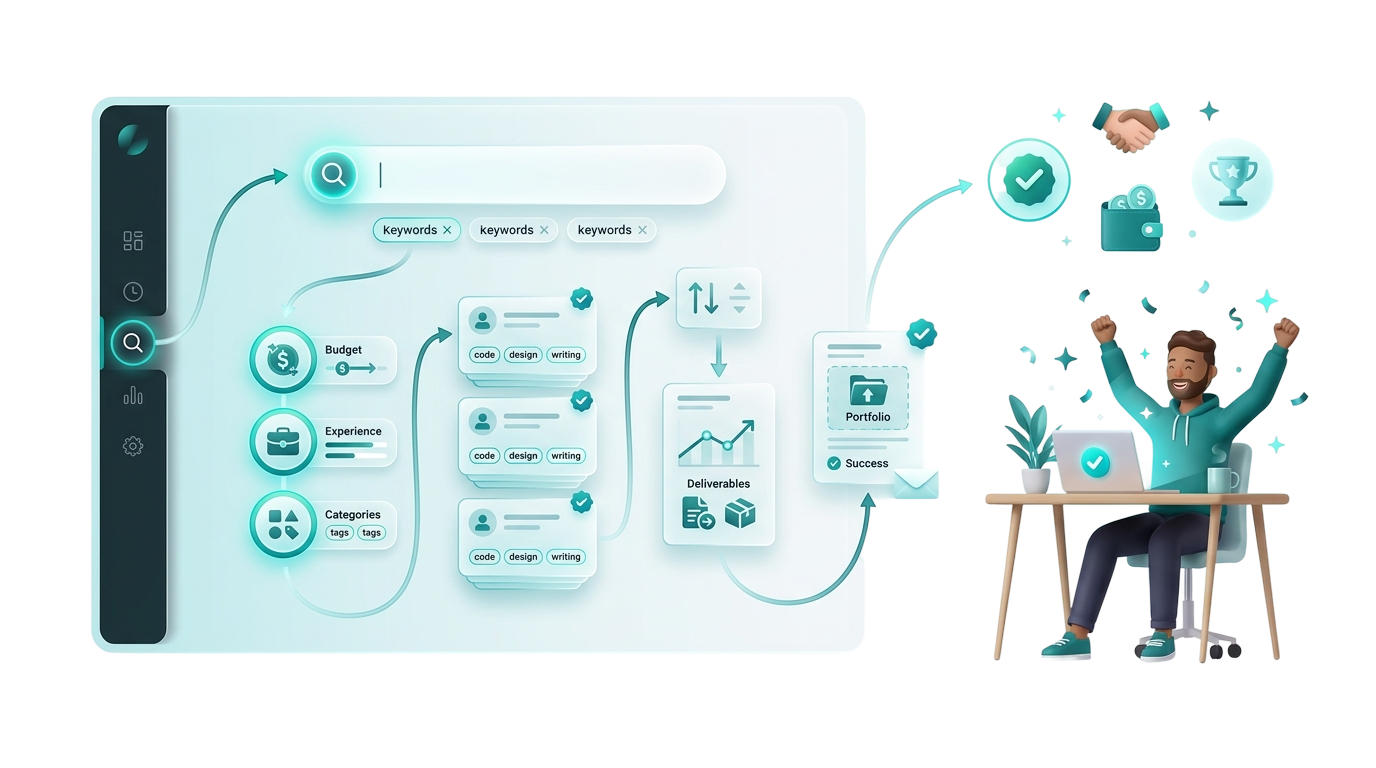
How do I search for jobs on Oscorm?
Finding freelance opportunities on Oscorm is simple. The Find Jobs feature helps you discover projects that match your skills, experience, and preferred budget. You can search for thousands of available jobs, apply filters to narrow your results, and submit proposals directly from the platform.
Access the Find Jobs Page
There are several ways to access the Find Jobs page, making it easy to search for work from anywhere in your Oscorm workspace.
From the Top Navigation Bar
The quickest way to find new opportunities is through the Find Jobs button located in the top navigation bar.
Simply click Find Jobs to open the marketplace, where you'll see the latest job postings from clients around the world.
This option is available throughout your workspace, so you can search for jobs at any time without returning to your dashboard.

From the Dashboard
On your dashboard, click the Find Jobs button in the Welcome section to start exploring projects that match your skills.
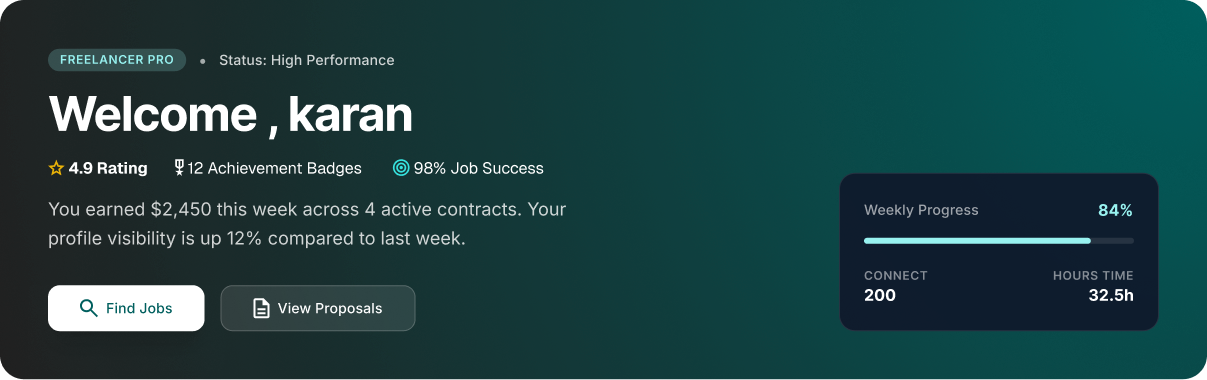
Quick Actions
Scroll down to the Quick Actions section and click the Find Jobs card. This is the fastest way to browse the latest job opportunities available on Oscorm.

Search for jobs
Once you're on the Find Jobs page, you'll see a search bar at the top of the screen.

Type a keyword related to the work you're looking for and click Search.
You can search using:
- Job title
- Skills
- Categories
Example searches:
• UI/UX Designer , React Developer , WordPress Developer , Graphic Designer , Mobile App Developer , Content Writer , SEO Specialist , Digital Marketing , Video Editor
Oscorm will display jobs that match your search terms.
Use Filters to Find the Right Jobs
If you receive too many search results, use the available filters to narrow down the listings.
Budget
Filter jobs based on your preferred project budget or hourly rate.
This helps you focus on projects that match your earning expectations.
Experience
Choose jobs based on the experience level required.
For example:
- Beginner
- Intermediate
- Expert
This allows you to apply only for projects that suit your expertise.
Proposals
View jobs based on the number of proposals already submitted.
Applying to projects with fewer proposals may increase your chances of getting noticed.
Job Type
Select the type of contract you're interested in.
Examples include:
- Fixed Price
- Hourly
Project Length
Filter projects according to their expected duration.
Whether you're looking for a quick task or a long-term contract, this filter helps you find suitable opportunities.
Location
Search for jobs posted by clients from specific countries or regions.
This is useful if you prefer working with clients from particular locations or time zones.
Category
Browse jobs within your area of expertise.
Examples include:
- Web Development, Graphic Design, Writing, Marketing, Business, Customer Support, Video Editing
Language
Filter projects based on the language required by the client.
This helps you find projects where you can communicate comfortably.
Timezone
Choose projects that match your preferred working hours.
Working with clients in compatible time zones often makes communication easier.
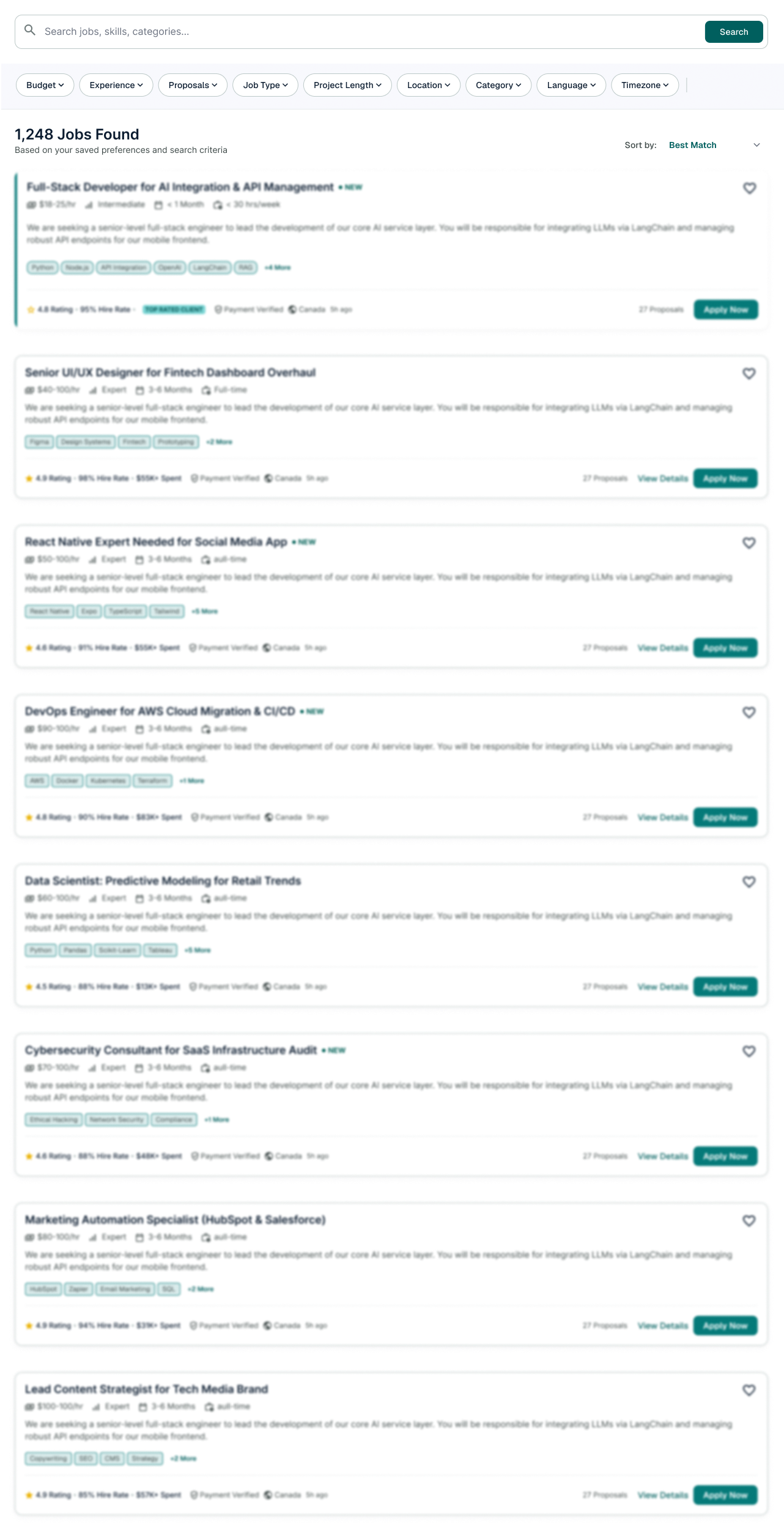
Browse Job Listing
Each job card provides important information to help you evaluate an opportunity before applying.

A typical job listing includes:
- Job title
- Budget or hourly rate
- Experience level
- Project duration
- Weekly working hours (if applicable)
- Project description
- Required skills
- Client verification status
- Client location
- Number of proposals received
- Apply Now button
This information helps you quickly decide whether a project is a good fit.